FX Search for Premiere
A lightning-fast, FX Console–style finder for Premiere Pro. Press one global shortcut and a tiny search box appears right at your cursor — type an effect, transition or command, press Enter, and it lands on your selected clips while the window vanishes. Now with Paste Image, Still Frames, Rename & Graph tools and a built-in guide.
Download free on Gumroad full version · free · regular updates FX SEARCH 1.7 · LIVE Try↑↓ to move · Enter runs it · Shift / Ctrl+Enter puts a transition on the in / out point · Esc backs out. The icons on the bar are live too: ★ recent commands, the camera captures a still, the picture opens Still Frames, the sliders open Settings and the XC logo opens the guide. Deselect clips to get the real No clips selected warning.
This is the actual FX Search 1.7 window running on a simulated Premiere project. Inside Premiere it searches every effect, transition and command you have installed.
VERSION 1.7.0 REQUIRES Premiere Pro 2020+ PRICE Free — full version PLATFORM Windows & macOS TYPE .zxp SHORTCUT Ctrl+Alt+Shift+SpacePaste, grab and shape — without leaving the box.
Three releases since 1.2 turned FX Search into a small toolbox. Every one of these is a free update, and each card has a button that runs it in the live window above.
1.7 · STILL FRAMES ▣Still Frames, FX Console–style
The camera on the search bar grabs the frame under the playhead into your own library; the picture button turns the window into a gallery. Multi-select, then send stills to the timeline or project, Save… them anywhere, or Delete to the Trash. HDR (HLG / PQ) sequences are tone-mapped, so iPhone footage no longer comes out blown out.
1.6 · PASTE IMAGE ⎘Paste any image
Copied a picture in the browser, took a screenshot, or copied image files in Finder / Explorer? Paste Image drops it at the playhead on the first free video track — or into the current bin. Paste Image to Timeline / to Project never guess. Files go next to your project, and the same file is reused instead of piling up copies.
1.5 · RENAME TOOL ✎Rename, properly
An inline panel: name + separator + running number, Find / Replace, Prefix / Suffix. Rename timeline clips, their source items, or sync names between the two — numbered by time or by track.
1.5 · GRAPH TOOL ∿Easing for Premiere keyframes
Ease In / Out / Both with an influence slider and 25 ease templates (quad, cubic, expo, back…). Premiere’s scripting has no keyframe handles, so the curve is baked into keyframes — re-apply to replace it, or pick Linear to remove it.
1.5 · NEST ▤Nest without collateral damage
The nested clip lands on the first empty tracks over the selection, so its audio never overwrites neighbouring clips. Only what you selected is nested, Enable / Disable and edge transitions are kept, and a nest takes about half the undo steps it used to.
NEW · GUIDE ?Help, commands & feedback built in
Click the XC logo for a guide drawn with the bar’s own icons, a filterable reference of every command (click one to search it), and a feedback form that opens a ready email. Search by initials (“gb” → Gaussian Blur) and the ★ recent list round it off.
The command palette, on real timelines.
Every clip below is a real screen capture in Premiere Pro — one keystroke, one command.
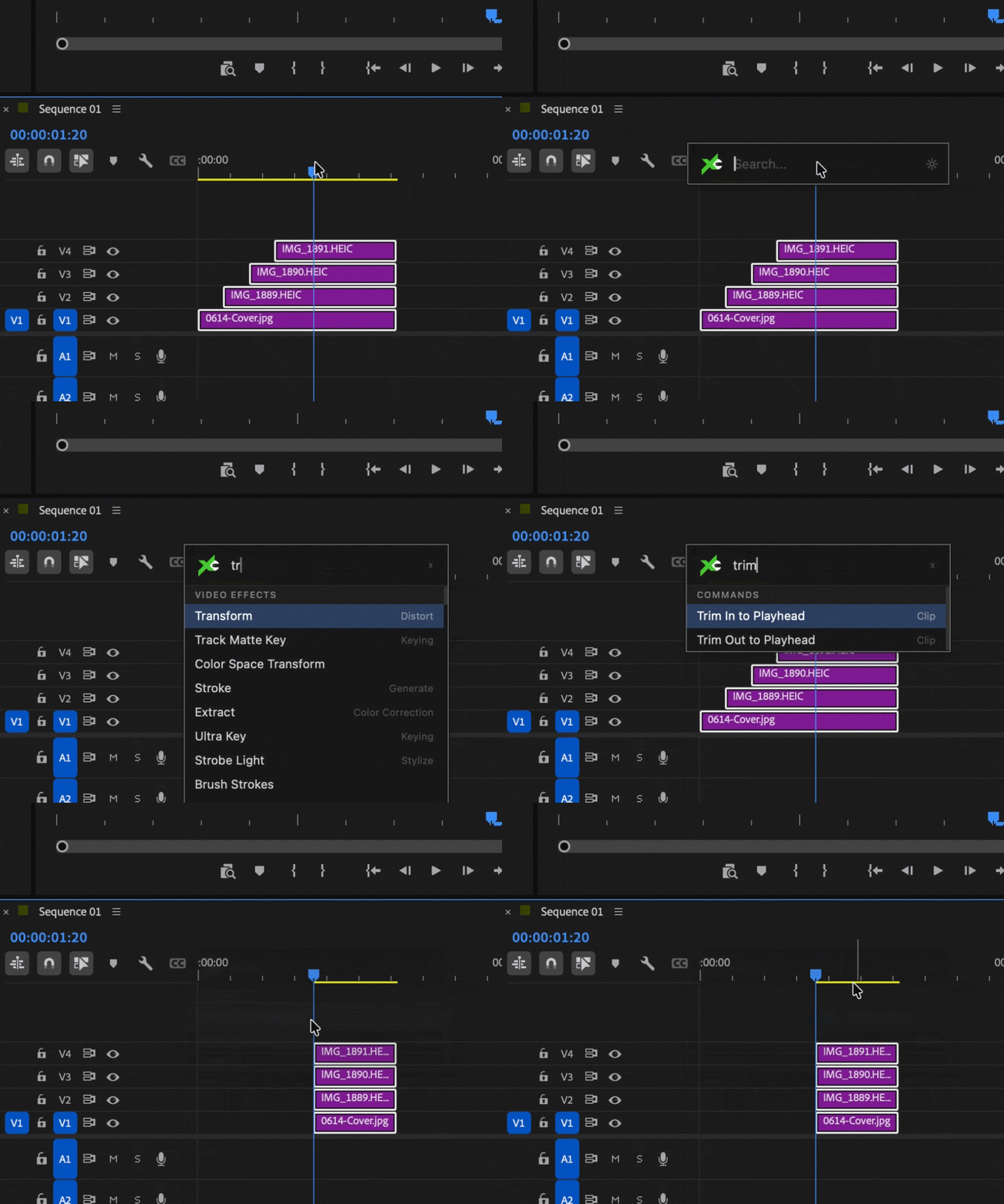
01Trim to Playhead
 PREMIERE PRO
Trim the clip’s IN edge to the playhead — or extend it when the playhead sits before the edge. No razor, fully undoable, limited only by the available source.
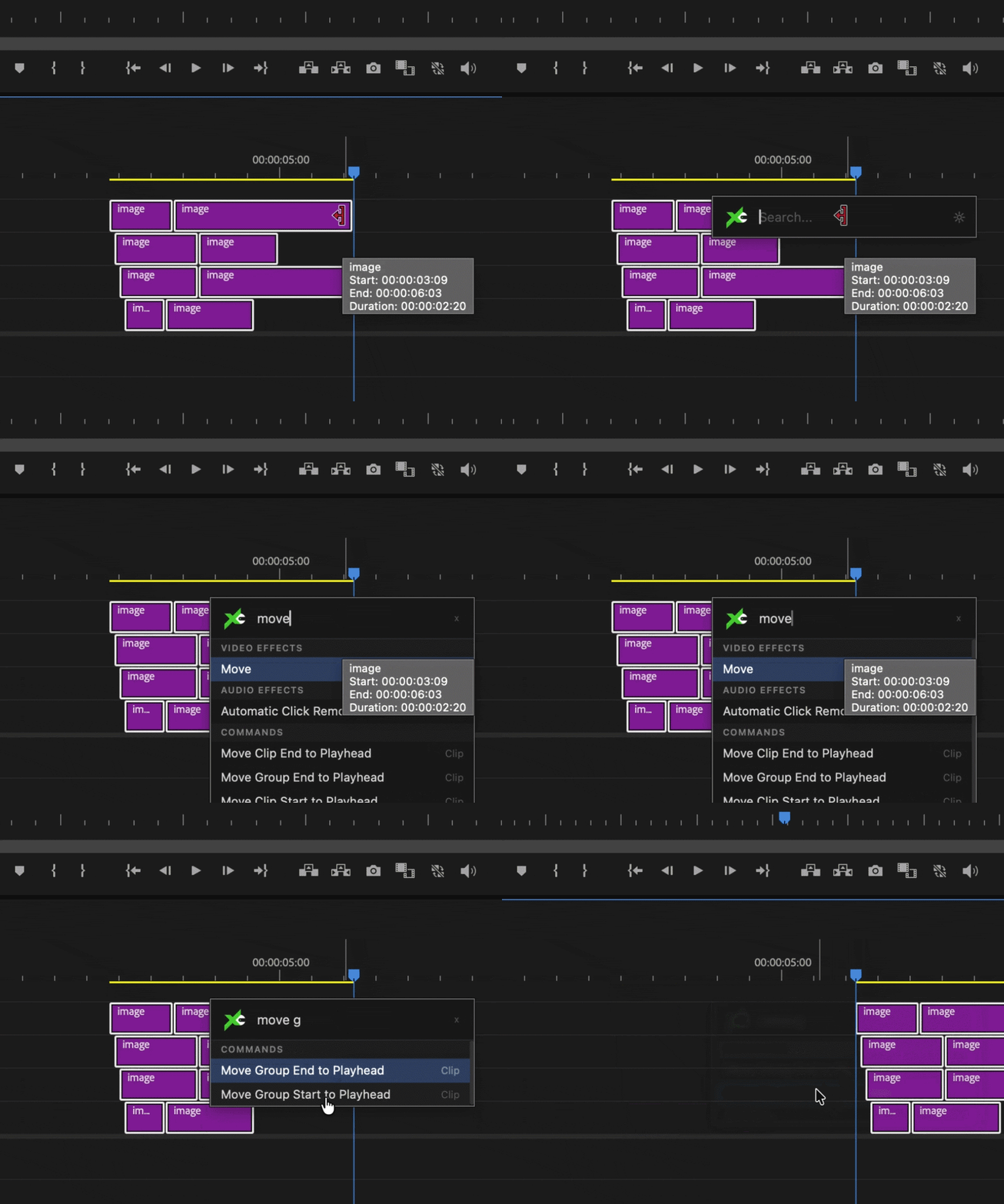
02Move Group to Playhead
 PREMIERE PRO
Shift a multi-track selection as one rigid block so its leading edge lands on the playhead, stopping cleanly against the next clip instead of overwriting it.
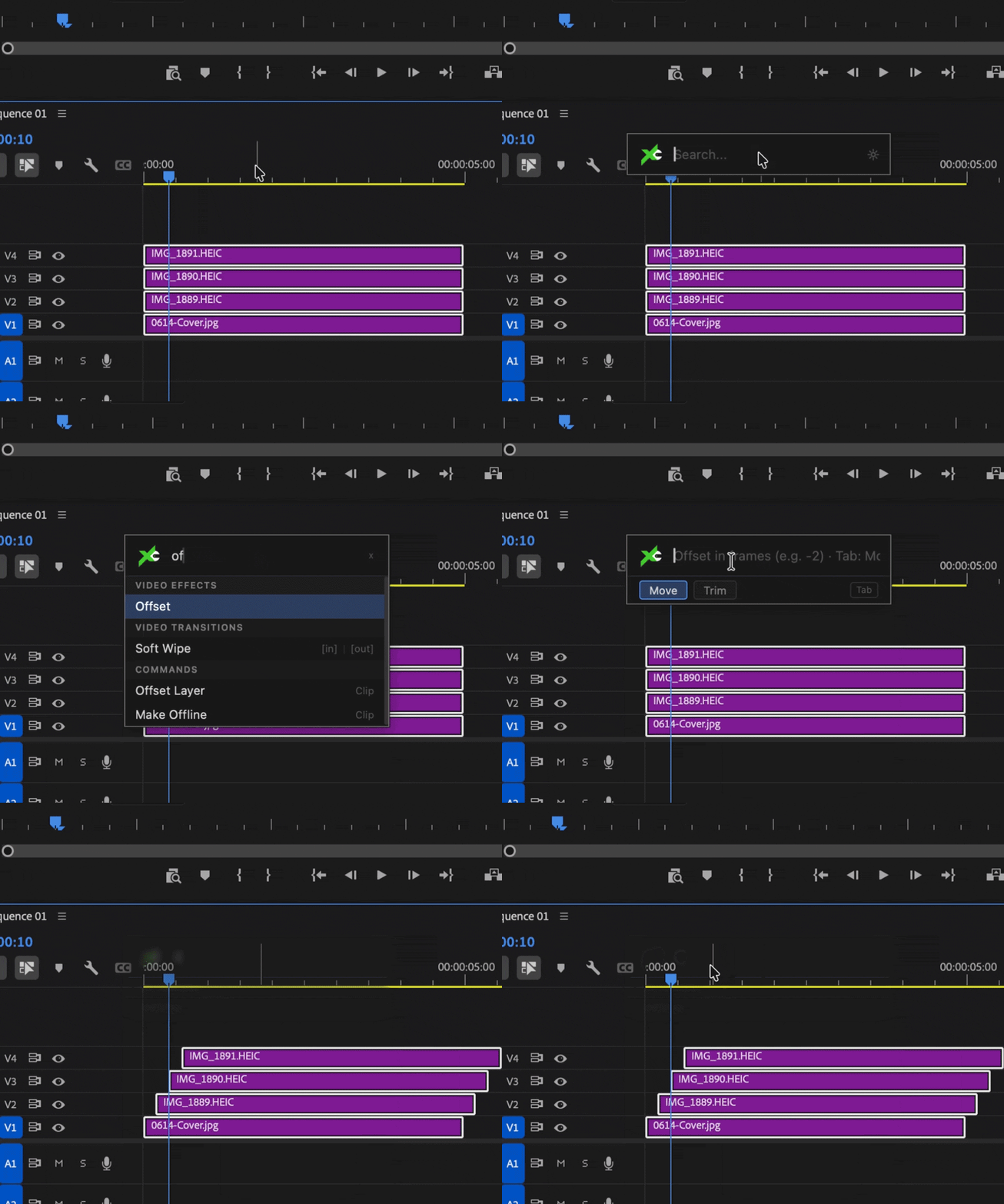
03Offset Layer
 PREMIERE PRO
Stagger the selected clips up the tracks by a set frame count, so a stack of layers cascades into a clean, even step — no manual nudging clip by clip.
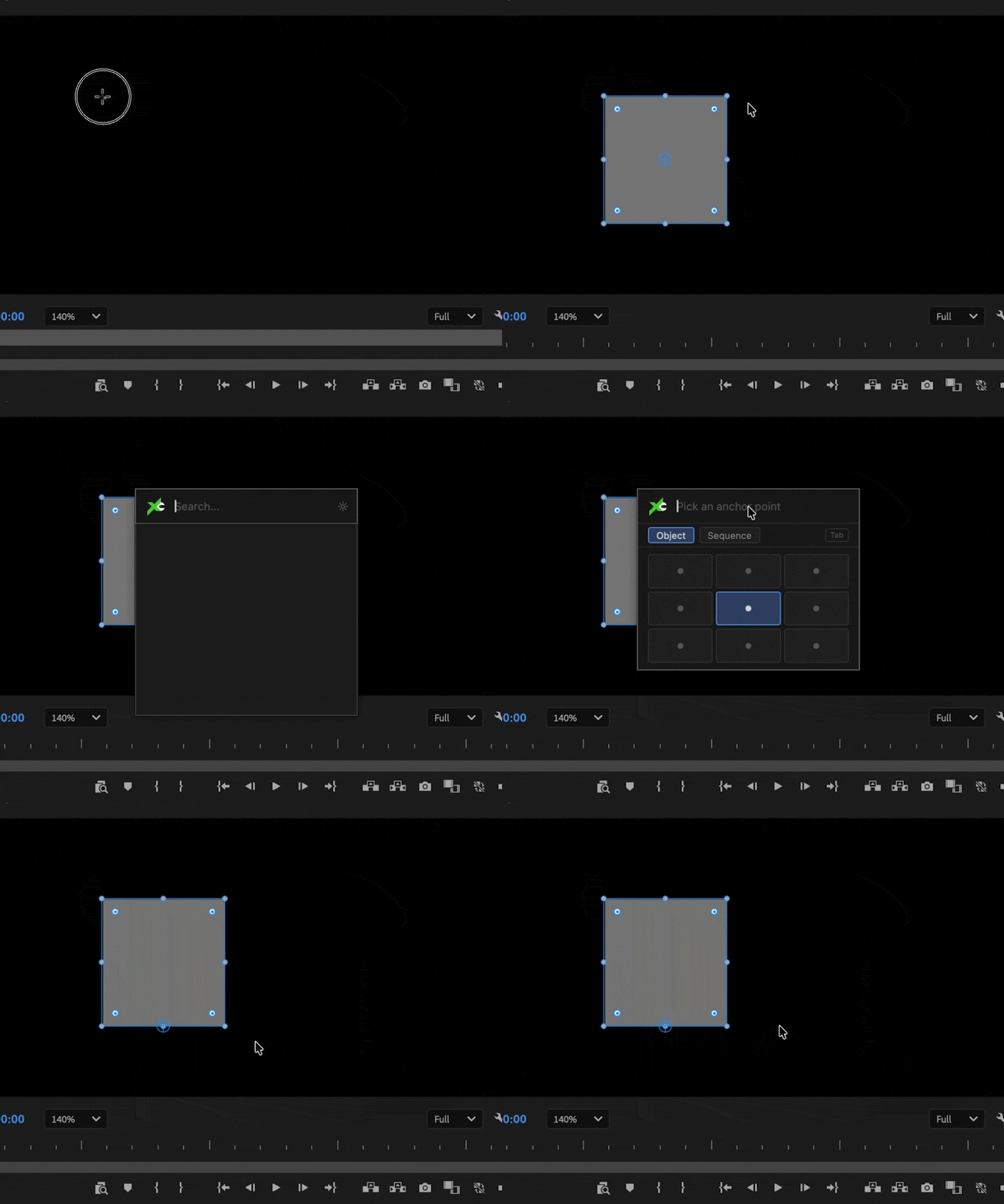
04Set Anchor Point
 PREMIERE PRO
Object mode sets the Motion anchor within each clip’s own frame and compensates Position, so the image never jumps on screen.
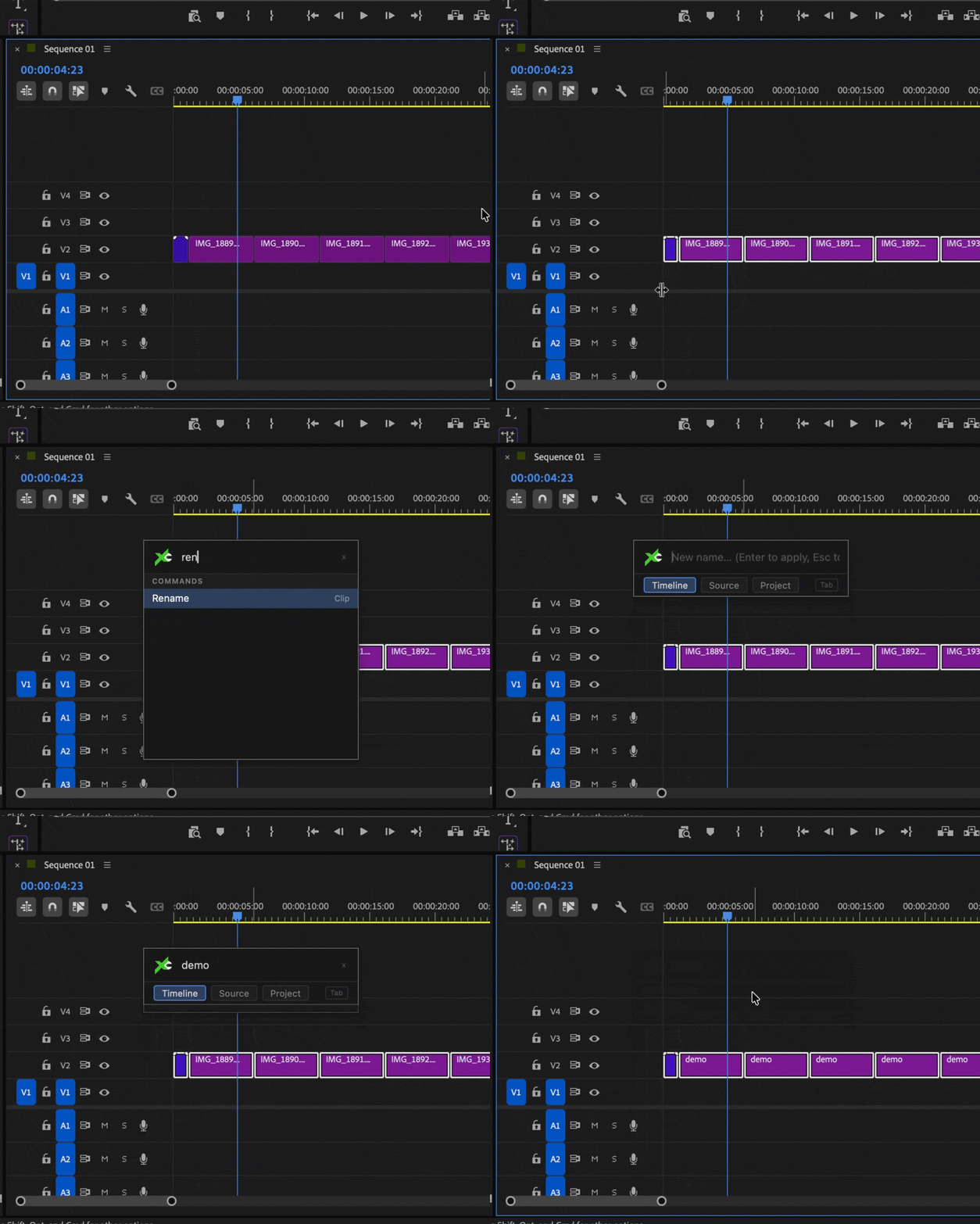
05Rename
 PREMIERE PRO
Rename the selected clips on the timeline, with auto-numbering when several are selected at once.
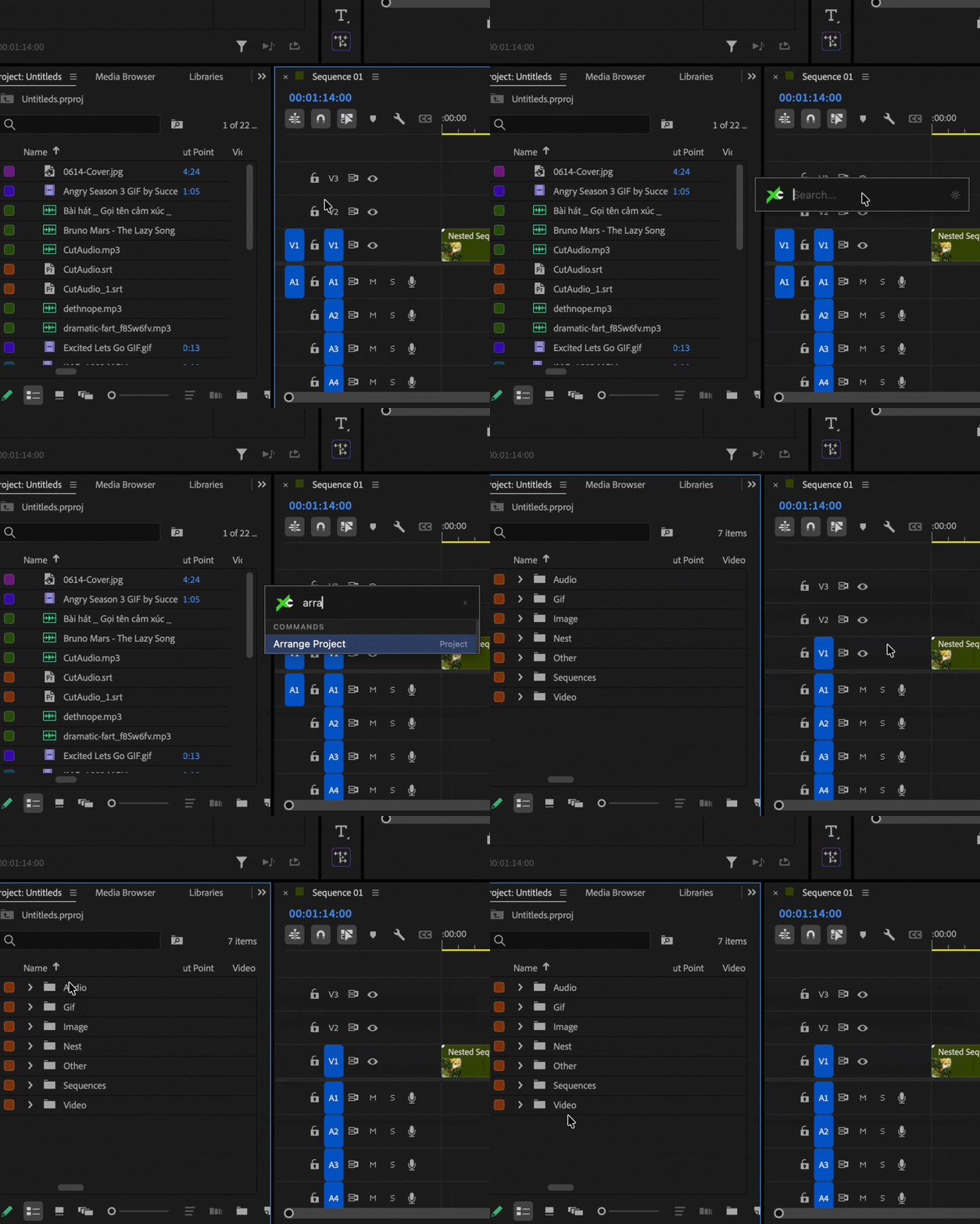
06Arrange Project
 PREMIERE PRO
Sort the Project panel into bins by type — Video, Image, Gif, Audio, Sequences, Nests, Graphics — in a single keystroke.
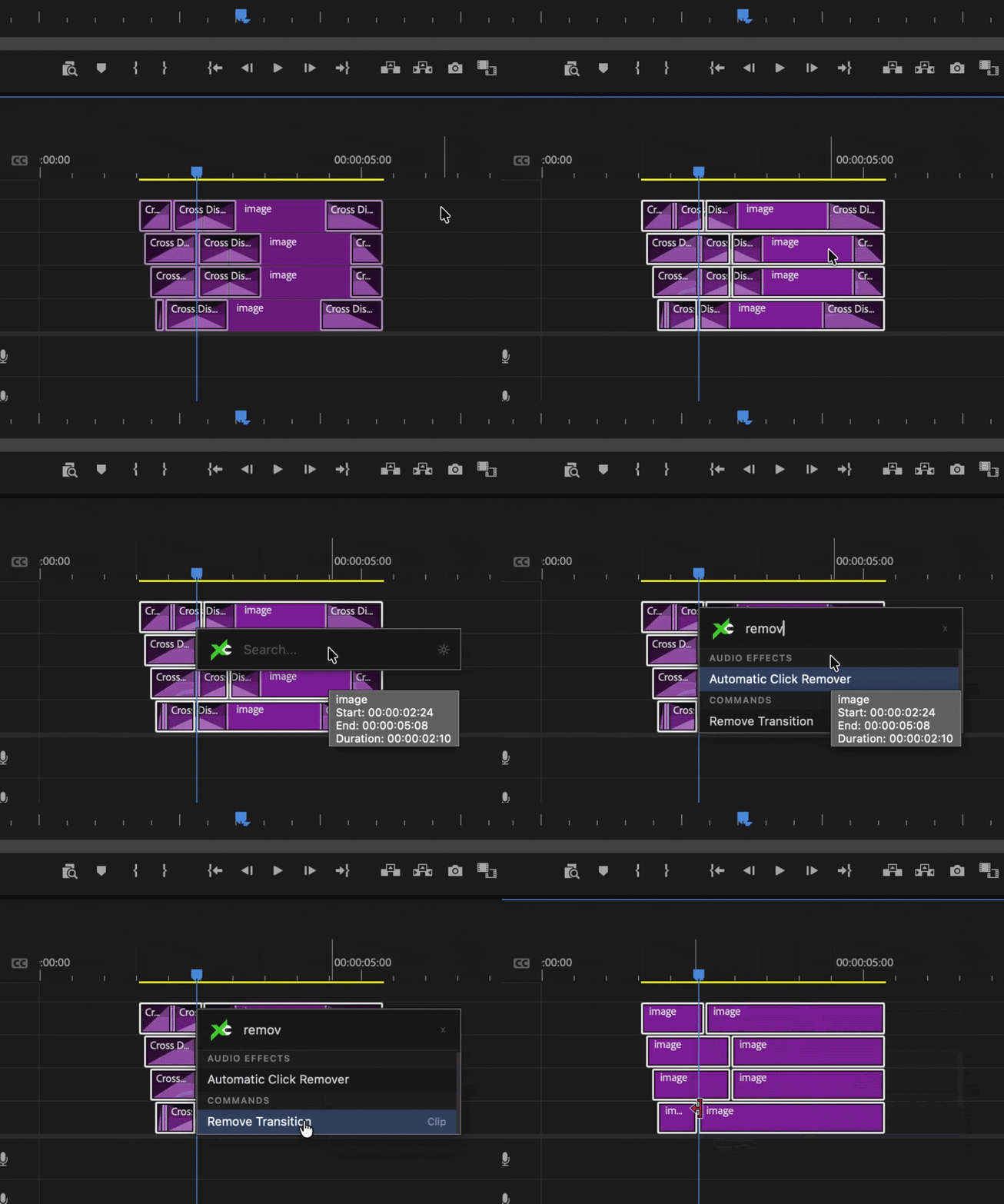
07Remove Transition
 PREMIERE PRO
Delete every transition on the selected clips at once — no hunting for each handle.
One hotkey between you and the next move.
⌕Type-and-go, at your cursor
A borderless box appears where your mouse is. Type, press Enter, and it's applied — the window vanishes the instant it lands.
↹In, out, or both ends
For transitions, a modifier on Enter picks the landing: both ends, the in point (Shift), or the out point (Ctrl/Cmd).
⌘A full command palette
Beyond effects, FX Search runs trim, move, offset, nest, anchor, rename, graph, markers, paste image, still frames and project housekeeping — plus a whole preset of timeline shortcuts — all without leaving the keyboard.
Effects, scripts, and shortcuts — one box.
The same search bar reaches three different layers of Premiere. Type a name and FX Search routes it the right way — no setup for the first two, a one-click preset for the third.
PART 1 · EFFECTSEffects & transitions
Search any effect or transition and drop it on the selected clips. The original core — with in / out / both control on transitions.
PART 2 · SCRIPTScript commands
Markers, trim & move, offset, nest, anchor, the Rename and Graph tools, Paste Image, Still Frames, Arrange Project and more — run straight through Premiere's scripting on your selection. No setup at all.
PART 3 · SHORTCUTShortcut commands
Labels, clip / audio / frame actions and render & replace — fired through a bundled keyboard preset, so ~40 extra commands work the moment you switch it on.
⌨The bundled keyboard preset
Installing the extension drops a preset into Premiere automatically. Open Keyboard Shortcuts and pick FX Search (Win) or FX Search (Mac) — every shortcut command goes live. It's built on Premiere's Default set, so your usual shortcuts stay; switch back any time.
Set timeline label Ctrl+Alt+Shift (Win) · Ctrl+Opt+Shift (Mac) + key Violet Q Iris W Caribbean E Lavender R Cerulean T Forest Y Rose U Mango I Purple O Blue P Teal A Magenta S Tan D Green F Brown G Yellow H Select Label Group ZTwo more bind without Shift, on Ctrl+Alt+digit (Win) / Ctrl+Opt+digit (Mac): Ctrl+Alt+1 Reveal in Project · Ctrl+Alt+2 Show Only Keyframed Properties.
Three steps, no mouse.
01Summon the box
Press Ctrl+Alt+Shift+Space (Ctrl+Opt+Shift+Space on Mac). A compact bar appears centered on your cursor.
02Type to search
An effect, transition or command — or just its initials, like “gb” for Gaussian Blur. Results appear instantly; ↑↓ to move.
03Press Enter
It runs on your selection and the playhead, then hides. Undo with Ctrl/Cmd+Z.
Premiere Pro 2020 (14.0) or newer, on Windows 10 / 11 (64-bit) and macOS. It installs as a standard CEP extension (.zxp). On Windows the floating window uses the Microsoft Edge WebView2 Runtime — built into Windows 11, a free install on some Windows 10 PCs. Window → Extensions → FX Search is the settings pane (shortcut, size, paste folder).
Search less. Edit more.
The full FX Search is free. Add it to Premiere and stop hunting for effects — and commands — on every cut.
Download FX Search — free ↗Frequently asked questions
- Which versions and platforms are supported?
- Premiere Pro 2020 (14.0) or newer, on Windows 10 / 11 (64-bit) and macOS. It installs as a standard CEP extension (.zxp). On Windows the floating window uses the Microsoft Edge WebView2 Runtime — built into Windows 11, a free install on some Windows 10 PCs. Window → Extensions → FX Search is the settings pane (shortcut, size, paste folder).
- How do I install it?
- Use a free ZXP installer (ZXP Installer from aescripts.com, or Anastasiy’s Extension Manager). Quit Premiere, drag the signed .zxp onto the installer, then relaunch. Because the package is self-signed, allow the “unknown publisher” prompt — that’s expected.
- What is the shortcut, and can I change it?
- Default is Ctrl+Alt+Shift+Space on Windows and Ctrl+Option+Shift+Space on macOS. Summon the box, click the Settings icon, then press the combo you want — on Windows and macOS alike (Cmd+Space stays with Spotlight). Changes take effect within a second, no restart. If another app owns your combo, FX Search keeps retrying and the rescue combo Ctrl+Alt+Shift+F12 always opens it.
- Is FX Search really free?
- Yes. The full version is free on Gumroad: every effect and transition, every command, the Rename, Graph, Paste Image and Still Frames tools, the keyboard preset and all future updates. There is no paid edition any more, and the old effects-only Free edition is gone — if you have it, install the current package over it.
- Does it need internet access?
- No. FX Search talks to Premiere through local files only — there is no network use, and Windows Firewall / macOS will not ask for access.
- How do transitions land on the clip?
- When the highlighted result is a transition: Enter applies it to both ends, Shift+Enter to the in point, and Ctrl+Enter (Win) / Cmd+Enter (Mac) to the out point.
- How do the shortcut commands and keyboard preset work?
- Timeline labels, clip / audio / frame commands and render & replace have no scripting API, so FX Search runs them by sending a key combo to Premiere. Installing the extension drops a ready-made preset in automatically — open Keyboard Shortcuts and choose “FX Search (Win)” or “FX Search (Mac)” to switch it on. It’s built on Premiere’s Default set, so your usual shortcuts stay, and you can switch back any time.
- What’s new in 1.7?
- 1.7 adds Still Frames: the camera button grabs the frame under the playhead into your own library (HDR sequences are tone-mapped so stills are no longer blown out), and the gallery puts them back on the timeline or into the project. 1.6 added Paste Image, 1.5 the Rename and Graph tools, a safer Nest and search by initials, and the latest build adds the in-app guide, a command reference and a feedback form behind the XC logo.
- How does Paste Image work?
- Copy an image anywhere — a browser, a screenshot, or image files in Finder / Explorer — then run Paste Image. It lands at the playhead on the first free video track, or in the current bin when the Project panel is focused. Images are saved next to your .prproj (or a folder you pick in Settings), and pasting the same file again reuses it.
- Where are Still Frames saved?
- In a per-user library (FXSearchPremiere/Stills), named after the sequence and timecode, so they are there in every project. From the gallery you can import them to the timeline or project, Save… them to another folder, or Delete them to the Trash / Recycle Bin.
- The shortcut does nothing — what now?
- On Windows, make sure the WebView2 Runtime is installed (the installer’s Check PC script tells you). Vietnamese input methods such as UniKey, EVKey or OpenKey can swallow global hotkeys — turn off their switch hotkey or pick another combo. The rescue combo Ctrl+Alt+Shift+F12 always opens the window, and restarting Premiere after installing helps.