EasyScript for Premiere
Auto silence-cut, transcription with speaker names, subtitles, 50+ language translation, beat markers and — new in 2.3 — voice / music separation, all directly on your Premiere timeline. Everything runs on your own machine, GPU first. It never touches your source files; every cut and rename is a timeline edit you can undo.
Get on Gumroad — Free runs locally · free updates 2022+ Premiere Pro 50+ languages Local on-device AI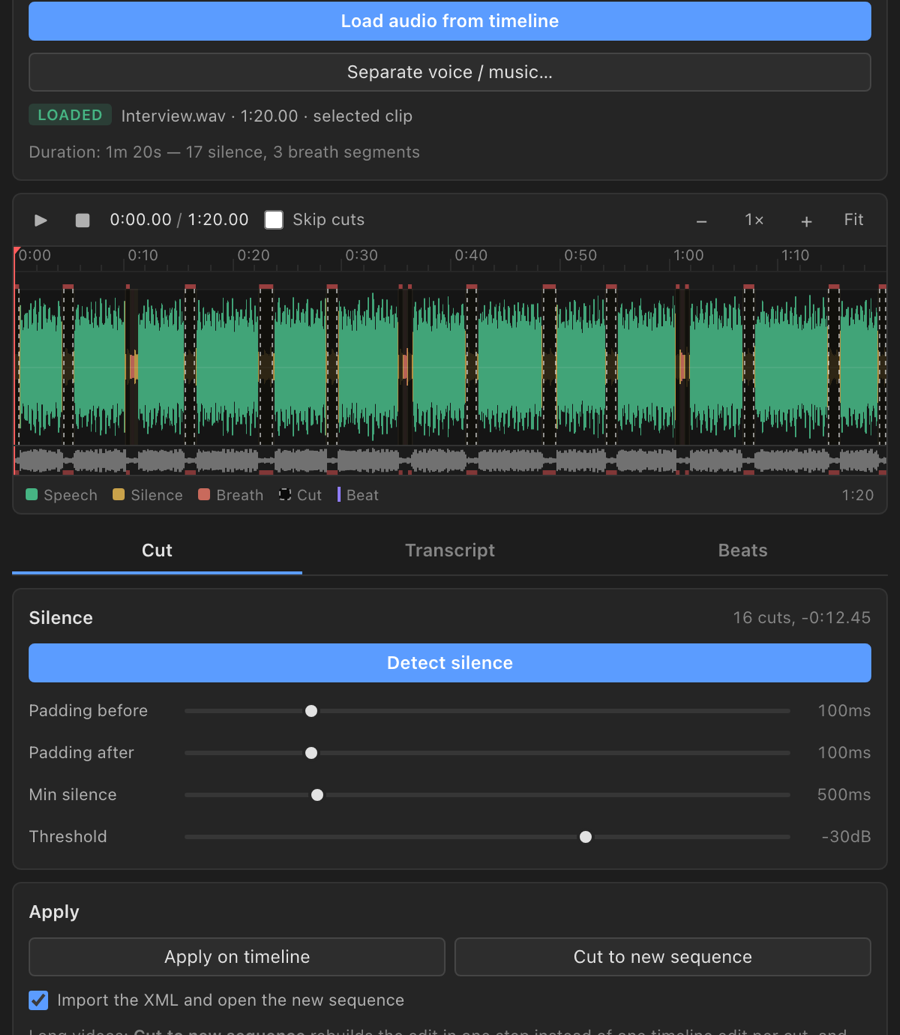
The real panel, on a sample interview.
This is EasyScript 2.3 itself, with Premiere and the AI backend simulated by an 80-second, two-speaker interview. The clip is already loaded — try Detect silence, then Transcribe and Speakers on the Transcript tab, Separate voice / music… at the top, and Detect beats on the Beats tab.
LIVE DEMO APPNothing is uploaded and no audio plays here — the waveform, transcript, translations, stems and beats are canned results. In Premiere the same buttons run Whisper, pyannote, Mel-Band RoFormer and the beat tracker on your own GPU.
From raw timeline to clean, subtitled, translated.
Ten steps, all on the timeline you're already working in. Run only the ones you need.
01 Pick a source Select a clip on the timeline or set In/Out marks. Range: Selected clip, In/Out points or Entire sequence — and choose the audio track. 02 Load audio Click Load audio from timeline. The waveform shows exactly the selected part, including trimmed clips and nested sequences. 03 Separate (optional) New in 2.3: Separate voice / music… — Voice only for a clean transcript over music, Music only for beat detection. Switch Original | Voice | Music any time. 04 Detect silence Finds silences and breaths. The Cut tab tunes padding, minimum silence and the dB threshold, with a live preview on the waveform. 05 Transcribe Speech to text with word timing. Turbo by default; add names and terms to the vocabulary to help recognition. 06 Speakers Who said what — built in, no token needed. Rename a speaker once and the voice is recognised in later videos. 07 Apply cut Apply on timeline removes the silences and keeps audio and video in sync; Cut to new sequence rebuilds long videos in one pass as an XML. 08 Make subtitle Creates a captions track on the timeline. Pick the original plus any translations; timing follows the cut or the original. 09 Tag speaker An edit at every speaker change, with clips named and colour-labelled per speaker — as a new sequence or in place. 10 Beat markers Detect beats, choose the spacing and meter, then add markers to the sequence or to the clip selected in the timeline.Everything in one panel.
SILENCEAuto silence-cut
Detect silences and breaths on the waveform, fine-tune padding, dB threshold and min-silence, then cut on the timeline — frame-exact — or rebuild long videos as a new sequence in one pass.
TRANSCRIBEWhisper transcription
Speech to text with Whisper Turbo by default (Large V3 accuracy, about 3× faster), word-level timing, a vocabulary for names and terms, and a Music / Song mode. Runs on-device.
SPEAKERSSpeaker diarization
Every word is attributed to its speaker and lines split where the speaker really changes. The model is bundled — no HuggingFace token — and named voices are recognised again in later videos.
SUBTITLESSubtitles on the timeline
Generate caption tracks directly in Premiere. Pick the original plus any translations, with timing after the cut or to the original.
TRANSLATE50+ language translation
Translate segments into dozens of languages with NLLB-200, Ollama, Hy-MT2 or the Claude API — local or cloud, your choice.
NEW · SEPARATEVoice / music separation
Split any clip into Voice only (clean transcription even over loud music) and Music only (the best input for beats), with Mel-Band RoFormer running locally. Switch Original | Voice | Music instantly.
NEW · STEMSStems back on the timeline
Import the voice or music at its original timecode, on the first audio track that is free for the whole range — never over existing audio. Files land in an EasyScript Stems folder and bin.
BEATSBeat markers
Detect beats and downbeats, choose a marker every 1/4 beat up to 4 bars, review them on the waveform, then place them on the sequence or on the clip selected in the timeline.
SAFENever touches your media
Every cut and rename happens on timeline clips only — your source files stay untouched and a single Undo reverts anything.
Read the waveform, then the words.
Filter the segment list by All / Speech / Silence / Translation, search and replace across the transcript, and jump straight to any moment on the timeline.
Pull the voice and the music apart.
Click Separate voice / music… and the loaded range is split by Mel-Band RoFormer, on Apple Silicon (Metal), NVIDIA (CUDA) or any Windows GPU (DirectML), with a CPU fallback. The two stems add back up to the source exactly, and nothing is uploaded.
01 Load audio, then Separate voice / music… — pick Voice only or Music only. The progress line shows which device is running. 02 Voice only → Transcribe — clean text with no music bleed, even on songs or loud background tracks. 03 Music only → Beats — detect the beat on the isolated music and add markers to the music clip. 04 Import voice / music to timeline — the stem lands at its original timecode on a free audio track (a new one if every track is busy), saved in EasyScript Stems.The first separation downloads the model once (about 870 MB). Updating from an older EasyScript? Run the installer again — it replaces both the panel and the backend.
One transcript, every language.
Add as many target languages as you like and translate every segment in place. Each language stacks alongside the source so you can review, edit, and burn them all into subtitles.
Tune it once, forget it.
Model & Language Turbo is the default (same accuracy as Large V3 on long Vietnamese and English interviews, about 3× faster); pick another model or language, or leave it on Auto-detect. Speakers & voice library Speaker detection is built in (pyannote community-1, bundled) — no token or account. Set a known speaker count or sensitivity for tricky audio, and rename a speaker once to have their voice recognised in later videos. Translation provider NLLB-200 (local, fast), Ollama, Hy-MT2 or the Claude API. Download the local model right from Settings. Subtitle timing Time subtitles after the cut, or keep them aligned to the original footage.Installs in a couple of clicks.
macOS- Fully quit Premiere (Cmd + Q).
- Right-click install-mac.command → Open → Open.
- It installs the panel and backend automatically — reopen Premiere when it finishes.
- Fully quit Premiere.
- Right-click install-win.bat → Run as administrator.
- Reopen Premiere when it finishes.
First launch
Open it from Window → Extensions → EasyScript. The panel auto-starts the backend (the corner shows Connecting → Connected). The first transcription downloads its model and the first separation another (~870 MB), each once — after that everything works offline. Plan for about 9 GB of disk if you use every feature.
Requirements: Adobe Premiere Pro 2022 or newer · macOS 13+ or Windows 10+ · 8 GB RAM (16 GB for the large models). GPU first — Apple Silicon (Metal), NVIDIA (CUDA) or any Windows GPU (DirectML) — with a CPU fallback. FFmpeg is bundled.
Good to know.
It is a Premiere Pro extension that cuts silence, transcribes speech with speaker names, makes subtitles, translates, places beat markers and separates voice from music — all directly on your timeline. It never modifies your source files; every change is a timeline edit you can Undo (Cmd/Ctrl + Z).
Cut, transcribe and translate — on the timeline.
Free, for Premiere Pro on Windows and macOS.
Get EasyScript on Gumroad ↗ xcmotion.gumroad.comFrequently asked questions
- What does EasyScript do?
- It is a Premiere Pro extension that cuts silence, transcribes speech with speaker names, makes subtitles, translates, places beat markers and separates voice from music — all directly on your timeline. It never modifies your source files; every change is a timeline edit you can Undo (Cmd/Ctrl + Z).
- What’s new in 2.3?
- Voice / music separation with Mel-Band RoFormer (Voice only for transcription, Music only for beats), importing the separated voice or music back to the timeline at its original timecode, beat markers on the clip selected in the timeline, and GPU-first processing on Metal, CUDA and DirectML. 2.2 brought Turbo transcription with word timing, built-in speakers without a token and the voice library.
- Which Premiere versions and OS are supported?
- Adobe Premiere Pro 2022 or newer, on macOS 13+ or Windows 10+, with 8 GB of RAM (16 GB for the large models). Apple Silicon Macs are fastest; NVIDIA GPUs use CUDA, other Windows GPUs DirectML, and everything falls back to the CPU.
- How do I install or update it?
- The package contains the .zxp, a backend folder and installers. Quit Premiere, then on macOS right-click install-mac.command → Open, on Windows right-click install-win.bat → Run as administrator. Reopen Premiere and open Window → Extensions → EasyScript. To update, run the new installer the same way — update the whole package, not only the .zxp, or separation reports “Not Found”.
- Do I need an internet connection?
- Only to download each model the first time you use it (transcription, translation, and about 870 MB for separation). After that everything runs offline on your machine — nothing is uploaded.
- Do I still need a HuggingFace token for speakers?
- No. Since 2.2 the speaker model (pyannote community-1) ships inside EasyScript. Set a known speaker count or sensitivity if the audio is tricky, and rename speakers once so their voices are recognised in later videos.
- How good is the voice / music separation?
- It uses Mel-Band RoFormer (Kim vocal model), a state-of-the-art separation model, on a full-quality copy of the loaded range. Voice only removes music for cleaner transcription; Music only removes the voice and is the best input for beat detection. The two stems add back up to the original exactly.
- What translation options are there?
- Choose a provider in Settings: NLLB-200 (local, fast), Ollama, Hy-MT2, or the Claude API. Add as many target languages as you like, review every line, then include them when you make subtitles.
- Will it change my original footage?
- No. All cuts and renames apply to clips on the timeline only — your source files are never touched, and a single Undo reverts anything. Stems and cut XMLs are saved as new files next to your project.